
An AI skill is a saved set of instructions, plus optional reference files, that your AI assistant loads whenever a task matches. Think of it as a reusable playbook. If you built a custom GPT or a Gem, you already have the raw material to create an AI skill, and you may need to do it sooner than you think.
Here’s why. The two most popular ways to customize an assistant are on their way out. Google is moving Gems to skills this month, and OpenAI has scheduled the retirement of custom GPTs for December 11, 2026. Claude already runs on skills.
This guide explains what changed, then walks you through building one skill from scratch. You’ll also get a template you can copy and adapt to your business today.
What changed: GPTs and Gems are giving way to skills
Here’s where each platform stands as of mid-November 2026. Details change fast, so confirm the dates in your own account.
| Platform | What you may have built | What’s happening | Where you build now |
|---|---|---|---|
| Google Gemini | Gems | On personal accounts for adults, Gems become read-only on November 17, 2026, and disappear on December 17, 2026. Work and school accounts follow in 2027. | Customize, then Skills |
| ChatGPT | Custom GPTs | Retirement is scheduled for December 11, 2026, though timing can vary by account and workspace. Personal plans can’t create new GPTs. | Plugins, then the Skills tab |
| Claude | Skills | Skills are already part of Claude. | Customize, then Skills |
The direction matters more than the dates. All three companies are moving to the same idea: a reusable skill that loads when a task calls for it. Gemini lets you import a skill made elsewhere by uploading its SKILL.md file. ChatGPT and Claude also build skills around that same file. So a well-written skill travels with light edits. Just test it on each platform before you rely on it.
What an AI skill is, and why it replaces both
A custom GPT or a Gem is a separate chatbot that you open on purpose. A skill works differently. It lives inside your regular assistant, and the assistant reaches for it when your request matches. In Gemini, for example, you can call a skill by typing a slash and its name. Gemini can also apply a skill on its own when it seems relevant, and you can stack several in one chat.
For a business, that shift matters. Your best prompts stop living in one person’s chat history. They become shared playbooks for how your company writes proposals, answers customers, or summarizes a week of sales calls. If you want the bigger picture of how AI is changing marketing, see my overview of how artificial intelligence is revolutionizing digital marketing.
Every good skill has three parts:
- When to use it. A short description that tells the assistant which requests it covers.
- How to do it. The steps, rules, and voice you want followed every time.
- What good looks like. One or two examples, plus reference files if the job needs them.
Google’s tips for writing skills say the same thing in fewer words: define when to use it, keep it concise, and give examples.
How to create an AI skill, step by step
The steps are the same on every platform. Only the buttons change.
Step 1: Pick one job that repeats
To create an AI skill that people actually use, start with a task you’ve already explained to an assistant at least three times. Good candidates for a business include replying to customer emails, drafting proposals, turning call notes into a follow-up, writing social posts in your brand voice, and building a weekly sales summary. Choose one. Skills work best when each one does a single job well.
Step 2: Write the description
The description decides when the skill runs, so make it specific. Say what the skill does and when to use it. For example: “Drafts replies to customer emails in our brand voice. Use when someone pastes a customer message and asks for a response.” A vague description makes the assistant ignore the skill or use it at the wrong time.
Step 3: Write the steps and rules
Write the way you’d brief a new hire. List the steps in order, describe the voice, and add the rules that matter, such as what to avoid and when to hand a case to a person. Keep it short. Include only the guidance the assistant wouldn’t follow on its own. Positive instructions also work better than long lists of “don’ts.”
Step 4: Add examples and test
Add one or two examples of an input and the output you’d be happy to send. Then test the skill on three real tasks, including one that should not trigger it. If the skill misfires, fix the description first. If the answers are off, tighten the steps.
Where to create an AI skill: Gemini, Claude, and ChatGPT
Menus change often, so treat these paths as a guide rather than a script.
Create an AI skill in Gemini
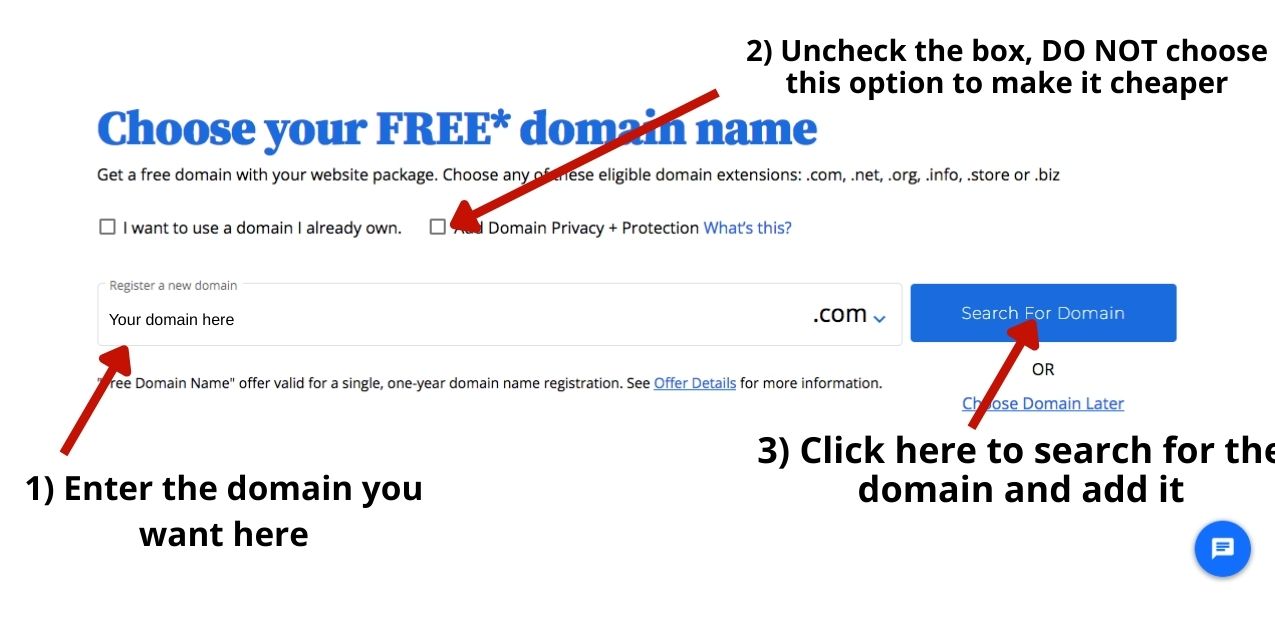
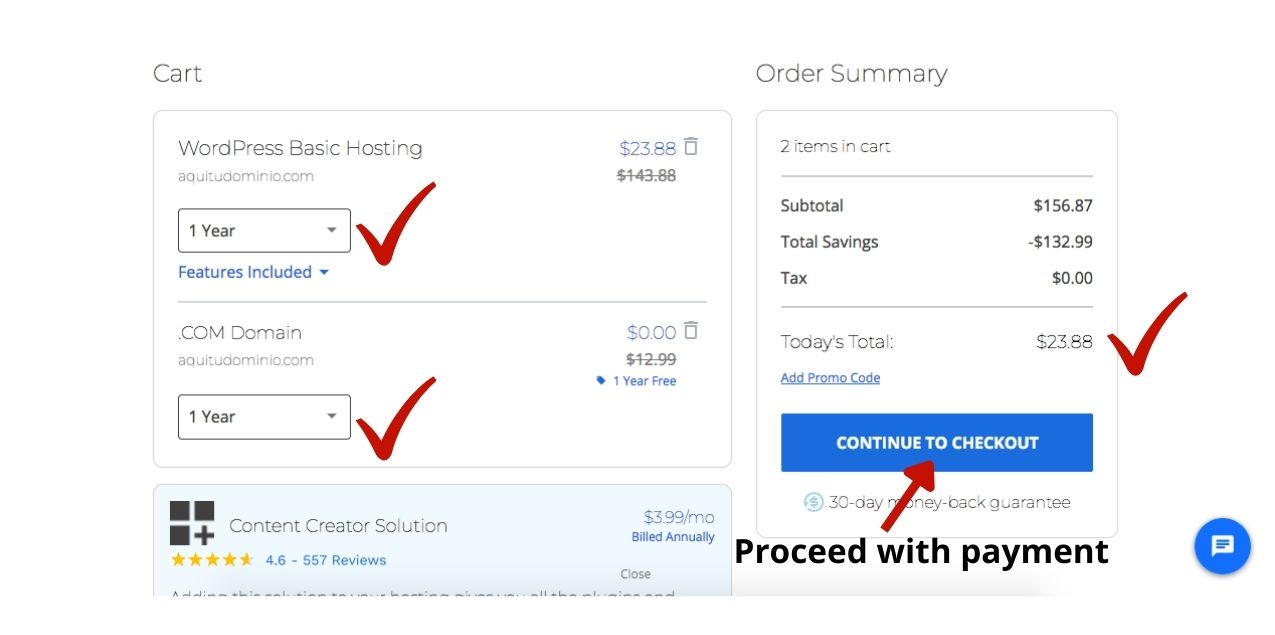
In the Gemini web app, open the sidebar, choose Customize, and then Skills. Select Create, then Create manually. Add a name, a description, and your instructions, and select Create. To add files, download the skill, place your files in its folder, and upload it again. The Google guide linked above shows each step.
Skills are available now to adults on personal Google accounts, and work and school accounts are coming. You can also bring in a skill built elsewhere by uploading its SKILL.md file.
Create an AI skill in Claude
Write your skill as a folder with a SKILL.md file, then zip it so the skill folder sits at the root of the ZIP. In Claude, open Customize and choose Skills. Select the plus button, then Create skill, then Upload a skill, and pick your ZIP file. Finally, turn the skill on. Anthropic’s Help Center guide to custom skills walks through each step.
Custom skills stay private to your account until you share them. Code execution and file creation also need to be turned on in your settings. If you’d rather not start from a blank page, ask Claude to draft the skill for you, then edit it.
Create an AI skill in ChatGPT
In ChatGPT, open Plugins in the sidebar and go to the Skills tab. Select Create, then choose how to build: describe the skill in chat, write it in the editor, or upload it from your computer. OpenAI’s Help Center lists Business, Enterprise, Healthcare, and Edu users as eligible, and workspace admins control who can create and upload skills.
If you don’t see a Skills tab on a personal plan, a ChatGPT Project can hold the same instructions for now. And before you upload a skill from someone else, review it and make sure you trust the source. OpenAI is also pushing ChatGPT deeper into business workflows, as I covered in my post on business profiles and sales agents inside ChatGPT.
A template to create an AI skill today
Copy this, replace the details with your own, and paste it into a SKILL.md file. It’s a hypothetical example for customer emails.
---
name: customer-reply-writer
description: Drafts replies to customer emails in our brand voice. Use when someone pastes a customer message and asks for a response, especially complaints, refund requests, and quote questions.
---

# Customer reply writer

## When to use this
Use for any customer email that needs a written reply. Do not use for legal threats. Flag those for the owner.

## Voice
- Warm, direct, plain English. Short sentences.
- Thank the customer once, then get to the answer.
- Sign off with the owner's first name.

## Steps
1. Read the message and name the customer's real need in one sentence.
2. Answer that need first. Put policies and details after.
3. If we made a mistake, say so, and state the fix and the date.
4. End with one clear next step.

## Example
Customer: "My order arrived damaged and I need this fixed."
Reply: "I'm sorry your order arrived damaged. I've ordered a replacement, and it ships today. Reply here if it hasn't arrived by Friday. - Alex"
Keep the name in lowercase with hyphens. Then change the voice, steps, and example until they sound like your business. That’s all it takes to create an AI skill that your whole team can reuse.
Sharing skills with your team
Once you create an AI skill that works, share it. Skills get more valuable when everyone uses the same playbook. Each platform handles sharing a little differently. In Claude, you can share a skill from Customize, and Team and Enterprise plans can publish skills to the whole organization. In ChatGPT, you share from the Skills tab in the Plugin Directory. Google says sharing permissions carry over from Gems, and that sharing and Drive files are coming to skills soon.
For larger companies, a few habits go a long way. Name an owner for each skill, keep a short change log, and review the instructions every quarter. Also remember that skills can include instructions or code, so install only what you trust. And keep confidential customer data out of skill files.
Mistakes to avoid
Avoid these mistakes when you create an AI skill:
- One giant skill that does everything. Build small skills that each do one job.
- A vague description. The assistant won’t know when to use it.
- No examples. Examples teach format faster than rules do.
- Skipping the test. Try real tasks before you share it.
- Never updating. Review your skills when your prices, policies, or voice change.
Quick questions about AI skills
Can you create an AI skill without coding?
Yes. A skill is mostly plain text. If you can write a clear checklist, you can build one. You can even describe the job to the assistant in chat and let it draft the file for you.
Will my old GPTs and Gems carry over?
Partly. Google says it will convert Gems to skills automatically when Gems go away. Some file types won’t carry over, though, and skills have a 100 MB limit on files. OpenAI offers a migration path from GPTs to plugins, but coverage of its migration FAQ says custom actions don’t transfer, so any API connection needs to be rebuilt. Either way, copy your instructions and download your files now.
Are skills safe for confidential data?
It depends on the platform, the plan, and what you put in the skill. Treat skill files like any shared document. Leave out passwords, client lists, and sensitive records. Then read your platform’s data policy, or ask your admin, before you upload anything private.
What I’d do first
If this were my business, I’d start this week. First, I’d copy the instructions and download the files from every GPT and Gem I rely on, before the dates above. Then I’d rebuild my most-used assistant as a skill with the template and test it on three real tasks. Finally, I’d name one person to own it and share it with the team.
Platforms will keep changing their menus, but the habit lasts: write down how you want work done once, and let AI follow it every time. If you’d like help deciding which workflows deserve a skill, reach out through my contact page, and we’ll map them out together.